Turn your creative direction into realistic images, product scenes, and design concepts.
Seedream 5.5 For Realistic Images And Creative Refinement
Bring Your Ideas Into Focus With Seedream 5.5
Bring a product scene, portrait, or campaign idea into focus with Seedream 5.5 on Kimg. Describe the subject, setting, lighting, and details that matter, then explore an image built around your direction. Start with a simple concept and refine the elements that need attention. From natural materials to carefully arranged compositions, make your creative brief easier to see, discuss, and develop with your team.

How To Create With Seedream 5.5
Create with Seedream 5.5 in three practical steps. A focused brief, careful review, and a specific follow-up direction help you get more from each creative attempt.

Describe Your Image
Give Seedream 5.5 a clear description of your subject, environment, lighting, and composition. Include the details that make the image useful, such as space for a headline or a specific product angle. Add a reference image when the selected generation mode offers that option.

Generate With Seedream 5.5
Check that Seedream 5.5 is selected, review the available settings and credit cost, then generate your image. Keep the first request focused so you can judge the composition clearly. Compare the result with your brief before deciding which detail to adjust next.

Review And Download
Review your Seedream 5.5 result for faces, object shapes, lettering, and essential details. Save the result you want to keep using the available download control. For another version, change one part of your direction at a time so the differences are easier to evaluate.
What You Can Create With Seedream 5.5
Seedream 5.5 brings an emphasis on realism, editing stability, and text structure. Translate those strengths into a clear creative brief: decide what the image should communicate, what must remain recognizable, and which details deserve a closer review.
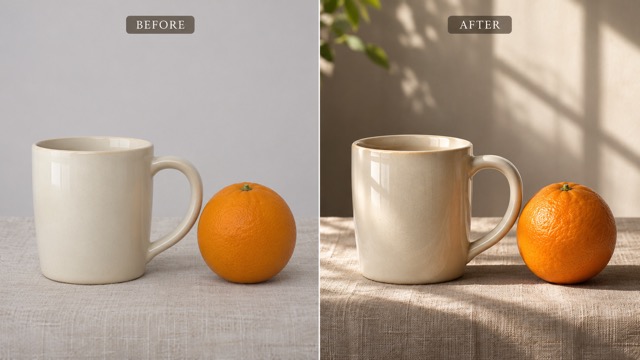
Seedream 5.5 For Convincing Visual Detail
Give everyday subjects a stronger sense of presence with Seedream 5.5. Describe how light reaches a surface, how fabric falls, or how a ceramic glaze reflects its surroundings. These details give a realistic image a clear visual purpose, especially when the subject is simple. For a product concept, start with one object and a believable setting, then assess texture, edges, and contact shadows before adding decorative elements to the scene.
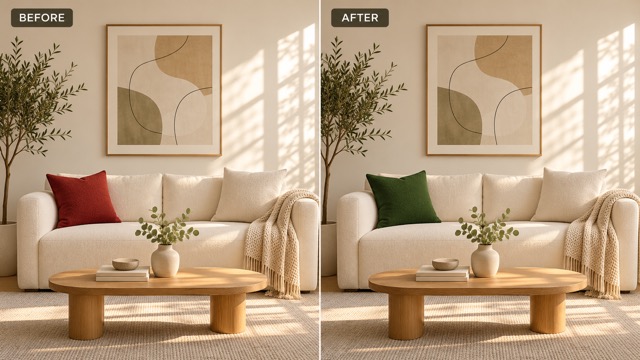
Refine Specific Details With Seedream 5.5
A useful Seedream 5.5 revision starts with a precise instruction. Name the detail you want to change and the features you want to preserve, such as a subject’s pose, the camera angle, or the overall palette. Seedream 5.5 is designed with more stable image editing in mind. Where reference-image editing is available, use your chosen image as the starting point and review each revision rather than assuming every untouched detail will remain identical.
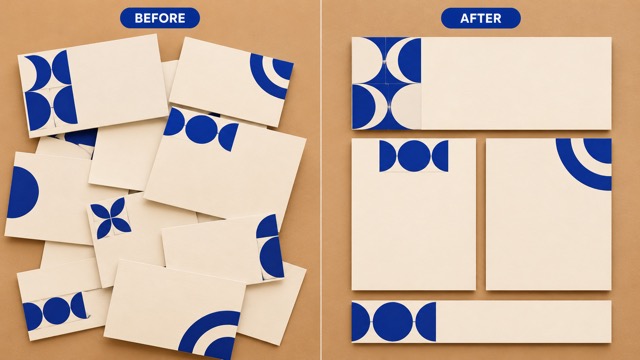
Plan Clear Layouts With Seedream 5.5
Ask Seedream 5.5 for a layout that gives your subject room to breathe. Specify the headline area, the relationship between objects, and the amount of empty space you need. For images containing words, provide the exact wording and describe its placement. Treat the result as a design draft: inspect spelling, spacing, and small characters at full size, and finish any essential typography in your usual design tool before publication.
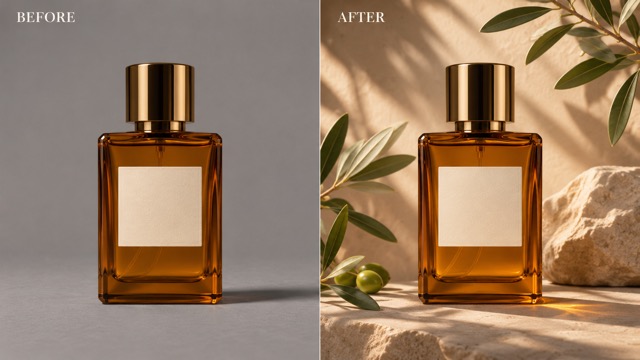
Explore Product Settings With Seedream 5.5
Explore product ideas with Seedream 5.5 by changing the environment, materials, or mood of your prompt. A quiet studio scene can help evaluate shape; a botanical setting can suggest a campaign atmosphere. Keep the product description consistent so each attempt answers a useful creative question. Review proportions and identifying details carefully, especially when a concept needs to represent a real item accurately for a store or client.
Seedream 5.5 Ideas For Your Next Creative Project
Use Seedream 5.5 to answer a concrete creative question. Choose a concrete audience and deliverable, then shape the image around the decision you need to make rather than adding detail for its own sake.

Product Campaign Concepts
E-commerce teams can use Seedream 5.5 to explore how one product might look against different materials, lighting, and backgrounds. Use the images to discuss campaign direction before arranging a shoot or building final artwork. Check that color, proportions, labels, and included accessories match the actual item before using any concept in a customer-facing listing.

Portrait And Editorial Direction
Photographers can use Seedream 5.5 to plan a portrait session by describing wardrobe, location, mood, and framing. Compare an intimate indoor scene with a brighter outdoor direction to make the discussion more concrete. When working from a person’s reference image, use appropriate permission and review facial details rather than assuming every result preserves identity.

Social And Event Creative
Social designers can explore launch visuals, event backdrops, and announcement concepts with Seedream 5.5 before committing to a composition. Request an open area for a headline and a palette that suits the project. Review the image at the size your audience will actually see, then add final dates, prices, and essential text in your design workflow.

Visual Briefs For Client Projects
Freelance designers can use Seedream 5.5 to turn written briefs into images that help clients choose a direction. Show how a change in lighting, setting, or object arrangement affects the message. Keep notes on the prompt behind each option so feedback becomes a specific next revision, and label concepts clearly when they are not final production assets.
Creative Perspectives On A Better Visual Workflow
These fictional names and illustrative evaluations describe how different creative roles might approach the workflow. They are examples of project priorities, not verified customer testimonials or claims of measured results.
I want product concepts that make the lighting and materials easy to discuss. A focused scene gives my team a much better starting point than a long list of visual references.
I want product concepts that make the lighting and materials easy to discuss. A focused scene gives my team a much better starting point than a long list of visual references.
Being specific about the composition helps me explain a direction to clients. I can compare the mood of different concepts while keeping the brief and the intended audience in view.
Being specific about the composition helps me explain a direction to clients. I can compare the mood of different concepts while keeping the brief and the intended audience in view.
The most useful portrait concept is one that communicates a believable mood. I value natural lighting, a clear wardrobe direction, and enough detail to turn the image into a practical shoot brief.
The most useful portrait concept is one that communicates a believable mood. I value natural lighting, a clear wardrobe direction, and enough detail to turn the image into a practical shoot brief.
I like planning the space for copy before finishing a social visual. It makes the image easier to adapt, and it helps me spot a crowded composition early in the process.
I like planning the space for copy before finishing a social visual. It makes the image easier to adapt, and it helps me spot a crowded composition early in the process.
A clear visual draft makes feedback more concrete. Instead of debating an abstract style, we can point to the background, lighting, or arrangement and decide what the next version should change.
A clear visual draft makes feedback more concrete. Instead of debating an abstract style, we can point to the background, lighting, or arrangement and decide what the next version should change.
I find side-by-side concept reviews useful when a launch needs one consistent direction. Checking the product details carefully keeps the discussion grounded in what we can actually show to customers.
I find side-by-side concept reviews useful when a launch needs one consistent direction. Checking the product details carefully keeps the discussion grounded in what we can actually show to customers.






Seedream 5.5 Questions And Answers
Find practical guidance on prompts, reference images, text, and preparing your result for use. Check the current generator controls for the settings available to your account.
Seedream 5.5 is an image creation model from ByteDance’s Seed team. Its announced focus includes more realistic images, stronger text structure, and more stable editing across successive revisions. On Kimg, use the model through the options shown in the generator; a model’s broader announced capabilities do not necessarily mean every feature is available in this interface.
Give Seedream 5.5 your subject and intended image, then add setting, lighting, composition, and the details that must be visible. Keep instructions compatible with each other. For a product scene, describe the object, surface, background, and camera angle. After reviewing the first result, change one major element at a time to make your feedback easier to follow.
Yes. Select Image to Image in the Seedream 5.5 generator on Kimg, upload a clear reference, and describe your changes. Specify the subject, pose, or composition you want to keep. Review the result against your original, especially facial features, product shapes, and small details that need to stay recognizable.
Seedream 5.5 emphasizes stronger text structure. Provide the exact words, desired placement, and a simple layout when lettering matters. Generated text can still contain errors, particularly at small sizes. Check spelling and factual details closely, and use a design editor for final typography that must be completely dependable.
Check the Seedream 5.5 credit requirement in Kimg before generating. Access, available credits, and pricing can depend on your account and the current model settings. This page does not promise unlimited free generation. Review the current pricing page and the cost shown for your chosen settings before starting a larger set of images.
Review your Seedream 5.5 image at its intended display size, paying attention to faces, product details, text, and the composition. Confirm that you have the necessary rights to any uploaded material and review applicable usage terms. Make final corrections in your design workflow, then download the approved version in the format offered by Kimg.
Create Your Next Image With Seedream 5.5
Choose one idea worth exploring and give it a clear visual brief. Create a product concept, portrait direction, or campaign scene, then review the details that matter to your project. Start with Seedream 5.5 on Kimg and develop the result one considered revision at a time.