nano banana 2.1: Turn Your Brief into an Image
Generate images from text and edit reference photos with Kimg AI.
Bring a product scene, portrait idea, or illustrated world into focus with Nano Banana 2.1. Start with a written description, or upload an image and explain the change you want. Kimg AI gives you a place to explore both workflows, so your next visual can begin with an idea or an asset you already have.
How to Use Nano Banana 2.1
A useful image starts with a clear brief. Choose your starting point, describe the result, then review what the model produces.

Start with text or a reference
Choose Nano Banana 2.1 in Kimg AI. For a new image, begin with a description of the subject and scene. For an edit, upload a clear reference photo that shows the details you want to keep. Use a source image with an unobstructed subject when identity or product shape matters.

Describe the image or change
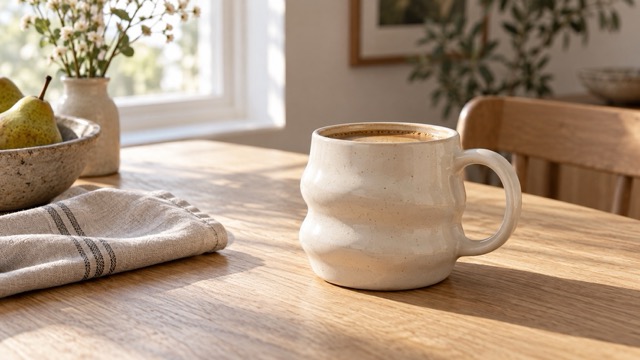
Tell the AI image generator what to show: subject, setting, composition, materials, and lighting. For reference edits, distinguish what should change from what should stay. A focused request such as changing the background while keeping the ceramic mug is easier to assess than a vague request to improve everything.

Generate, inspect, and refine
Generate the image and compare it with your brief. Check subject details, visual balance, and any lettering before using the result. If something misses the mark, write a more specific instruction and try again. Keep the source and your preferred result available when planning the next edit.
Features of Nano Banana 2.1
Use Nano Banana 2.1 for a fresh starting point or a directed change to an existing image. These four approaches help turn a broad idea into a practical creative brief.
Create a Scene from a Written Brief
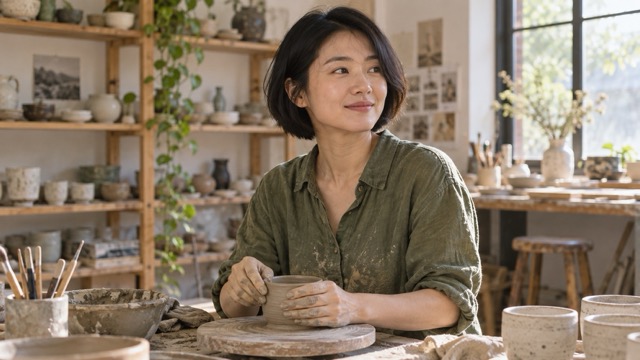
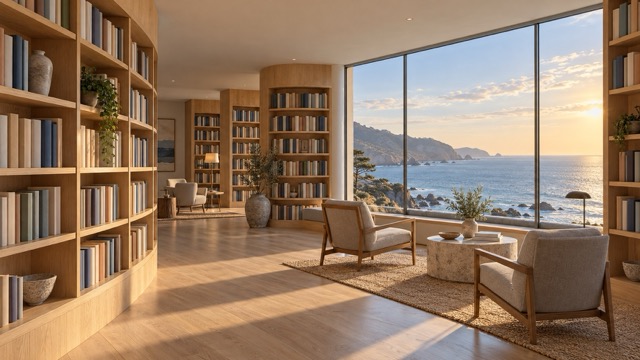
Build an image around the subject you describe. A handmade teapot on a breakfast table, a quiet coastal library, or a stylized forest can all start as words. Specify the main object first, then add the environment and visual treatment. Use framing to make the purpose clear: a close view for texture, a wider view for atmosphere, or open space for a layout you will finish later. The AI image generator produces a visual interpretation, so inspect details that your project depends on rather than assuming every instruction was followed.
Edit a Reference Photo with Clear Instructions
Upload an existing image and explain the transformation you need. You might request a different setting, a new color treatment, or another artistic style. With Nano Banana 2.1, the reference supplies visual context while your text directs the edit. Name the elements to preserve, including the subject, proportions, and distinctive materials. For a product photo, describe the object separately from its surroundings. Review the output against the original: an edit can also change details you intended to retain, especially when the request covers several changes at once.
Explore Lighting, Materials, and Style
Give the same idea different creative directions through your brief. Ask for soft window light, a watercolor illustration, or a restrained studio composition, and describe the surfaces that matter. Concrete instructions such as brushed metal, matte ceramic, or woven linen are more useful than a long list of quality adjectives. This approach lets you compare visual treatments before committing to a campaign or artwork. Each result is a candidate to review; consistency between separate generations is something to check. Keep your core subject description stable when exploring alternatives.
Plan Composition for the Image You Need
Think about where the visual will appear before you generate it. Describe a centered object for a product concept, a wide environmental portrait for an editorial layout, or a scene with breathing room around the subject. Kimg lists Nano Banana 2.1 at 1K, 2K, and 4K; use the options available in your workspace for the intended output. Resolution is only one part of usability. Check crop, fine details, and legibility at the size your audience will see, and finish any precise layout work in your usual design process.
Use Cases of Nano Banana 2.1
Choose a workflow around the job you need to do. Nano Banana 2.1 can support exploration across product, editorial, artistic, and educational briefs.

Product Scene Concepts
Start with a reference photo of a ceramic cup, bag, or decorative object. Describe a tabletop, room, or outdoor setting that fits your campaign. Ask to retain the defining shape and material, then compare the generated scene with the source. This is useful for exploring a visual direction before arranging a shoot. Confirm that product details remain accurate before using a concept in customer-facing material.
Editorial and Social Visuals
Use a text brief to explore a supporting image for an article, announcement, or social post. Describe the central idea and give the subject enough room to work in your layout. A calm reading corner or an expressive environmental portrait can communicate a mood without relying on a literal screenshot. Add final headings in your design tool when exact typography and placement matter.
Illustration and Art Direction
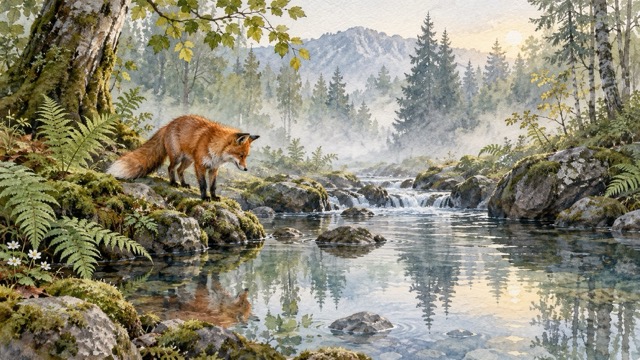
Turn a story setting or visual motif into an image you can discuss with collaborators. Describe the perspective, palette, and medium: for example, a watercolor woodland with a small fox beside a stream. Use the AI image generator to explore alternatives and identify which visual details best express the idea. Keep the brief specific enough to compare the resulting compositions on meaningful differences.
Learning and Presentation Imagery
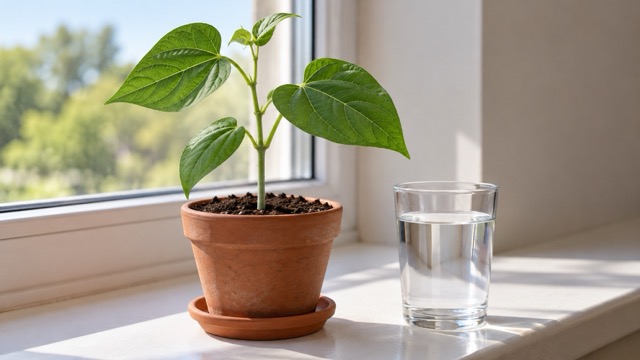
Create a supporting visual for a lesson or presentation, such as a plant beside a window or an imagined historical room. State what the picture should help explain and remove unnecessary visual distractions from the brief. Inspect factual details before presenting the image as instructional material. For exact diagrams, dates, labels, or measurements, verify the content and finish annotations separately.
Example Creator Feedback of Nano Banana 2.1
Illustrative feedback with fictional names and roles; these examples are not verified customer testimonials.
Example testimonial: I use a clear reference brief to explore a softer setting for a product image, then check that the mug still matches the original.
Example testimonial: I use a clear reference brief to explore a softer setting for a product image, then check that the mug still matches the original.
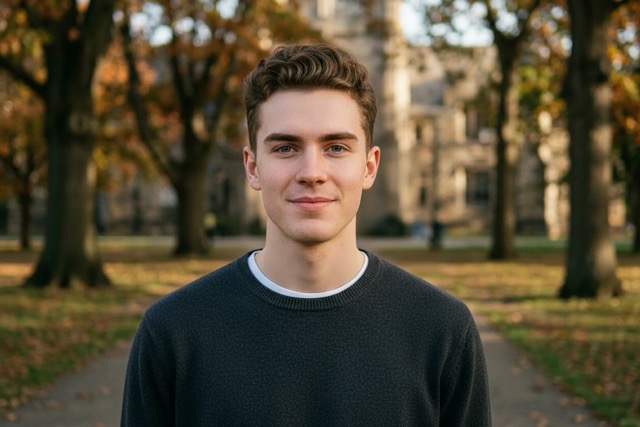
Example testimonial: A specific background request gives me a useful direction for an editorial portrait. I review the face and composition before using the image.
Example testimonial: A specific background request gives me a useful direction for an editorial portrait. I review the face and composition before using the image.
Example testimonial: Describing the medium, palette, and setting helps me explore a watercolor direction for a woodland illustration.
Example testimonial: Describing the medium, palette, and setting helps me explore a watercolor direction for a woodland illustration.
Example testimonial: Asking for open space beside the subject helps me plan a social layout before I add the final headline.
Example testimonial: Asking for open space beside the subject helps me plan a social layout before I add the final headline.
Example testimonial: A simple plant scene gives me a visual starting point for a classroom slide. I check the details before presenting it.
Example testimonial: A simple plant scene gives me a visual starting point for a classroom slide. I check the details before presenting it.




Nano Banana 2.1 Questions, Answered
Understand the starting inputs, model choice, and checks that help you get a useful result.
Nano Banana 2.1 is a Google image generation and editing model. On Kimg AI, you can use it to generate an image from text or edit an uploaded reference with written instructions. Start with the workflow that fits your source material: a text brief for a new scene, or an image plus instructions for a directed transformation. Review the output as part of the creative process.
An upload is needed when you want to edit a particular reference image. You can also start with a text description for a new image. For a reference edit, use a clear source and describe the change explicitly. For text generation, include the subject, setting, framing, and lighting. These inputs give the model context without requiring an existing photo for every project.
Describe what should appear before adding style details. A useful order is subject, action or pose, setting, composition, then lighting and materials. For an edit, say what should stay and what should change. For example: keep the cream ceramic mug and its handle, replace the surroundings with a wooden breakfast table, and use soft morning light. Check whether those instructions were respected in the result.
Google describes Nano Banana 2.1 as an update to Nano Banana 2, with changes to image quality, prompt adherence, conversational consistency, and text rendering. Those model-level descriptions do not guarantee an exact result for your brief. Compare outputs on the details that matter to your work, such as subject shape, composition, and lettering. Kimg workspace settings determine which options you can choose for a generation.
Kimg publicly lists Nano Banana 2.1 with 1K, 2K, and 4K options. Check the settings and usage information shown in your account before starting a run. After generation, inspect small details, edges, and any text at the intended display size. Higher resolution does not make every detail correct. Review reference edits for unwanted changes, and verify any factual content used in educational or commercial designs.
Try Nano Banana 2.1 Now
Open Nano Banana 2.1 in Kimg AI, write your brief, and explore a new image or reference edit. Review the result and refine the details that matter.