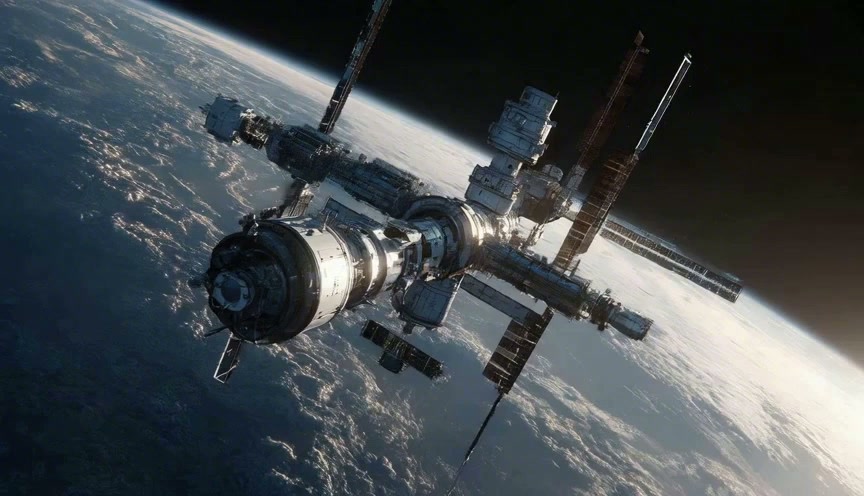
GPT Image 2 for Fast, Directed Image Creation
Create original visuals from words or guide a new result with a reference image in one focused online workspace.
The model brings prompt-based generation and editing into one clear workflow. Use the online generator to turn a detailed brief into a polished concept, or provide an image when visual continuity matters.
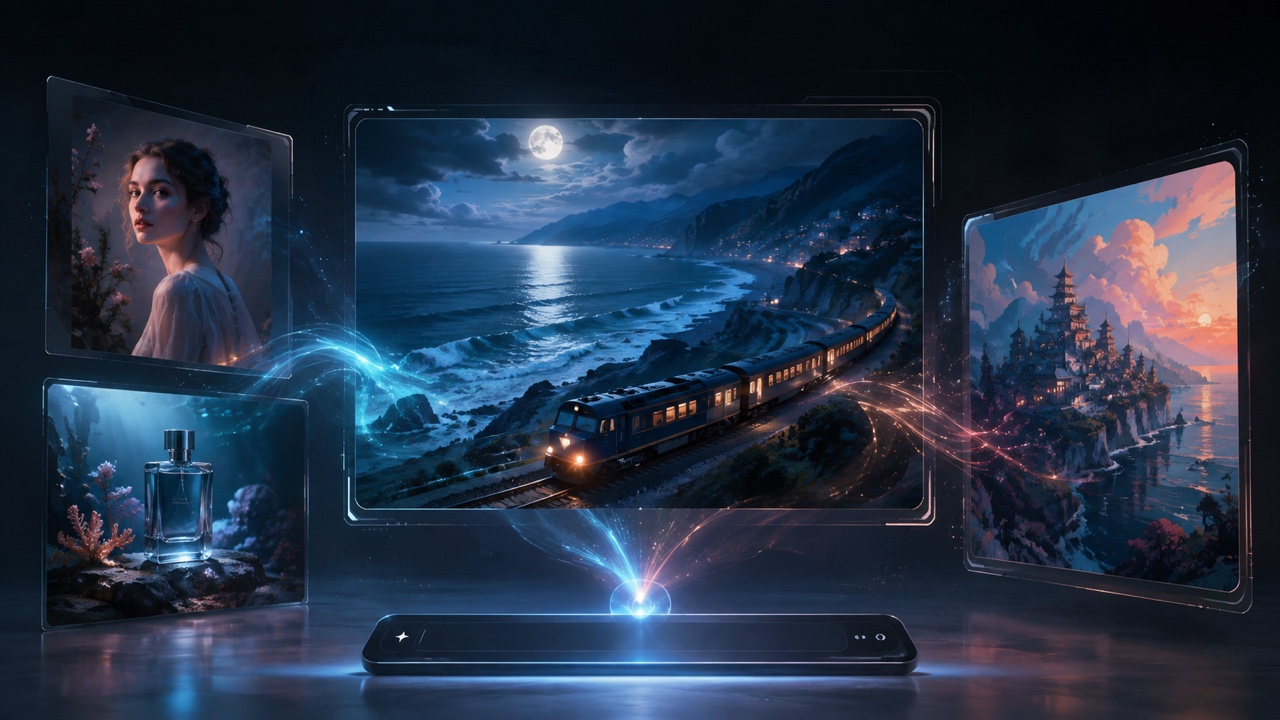
How to Use GPT Image 2 Online
The online generator keeps creation straightforward: define the outcome, add optional visual guidance, then review and refine. The model responds to natural-language direction, so you can concentrate on the image rather than a complicated production interface.

Describe the Image You Need
Start with the subject, setting, style, composition, lighting, mood, and intended use. Strong GPT Image 2 prompts explain how those details relate instead of listing disconnected adjectives. If words must appear inside the image, quote the exact copy and describe its hierarchy. The generator works best when the main request and the non-negotiable constraints are easy to identify.

Add an Optional Reference Image
Upload an image you have permission to use when the new visual should follow a subject, layout, palette, product, or scene. Tell the model what the reference controls and what may change. This makes reference-guided editing more deliberate. The generator can use visual input alongside your prompt, while a precise preservation instruction helps keep the creative boundary clear.

Generate, Inspect, and Refine
Generate the first result, then inspect text, anatomy, object count, spatial relationships, brand details, and factual elements before using it. Ask the model for one focused revision at a time, such as a calmer palette or a different camera angle. Returning to the generator with a specific correction usually creates a more useful comparison than replacing the entire brief.
Turn Creative Direction into Usable Visual Concepts
The model supports both fresh generation and reference-guided changes. The GPT Image 2 generator is designed for fast, high-quality image generation and editing, with stronger instruction following, flexible sizing, and high-fidelity image inputs that help creative teams move from an idea to a reviewable visual. A structured brief also gives collaborators a shared basis for reviewing purpose, hierarchy, accuracy, tone, and the next revision instead of reacting only to surface style.
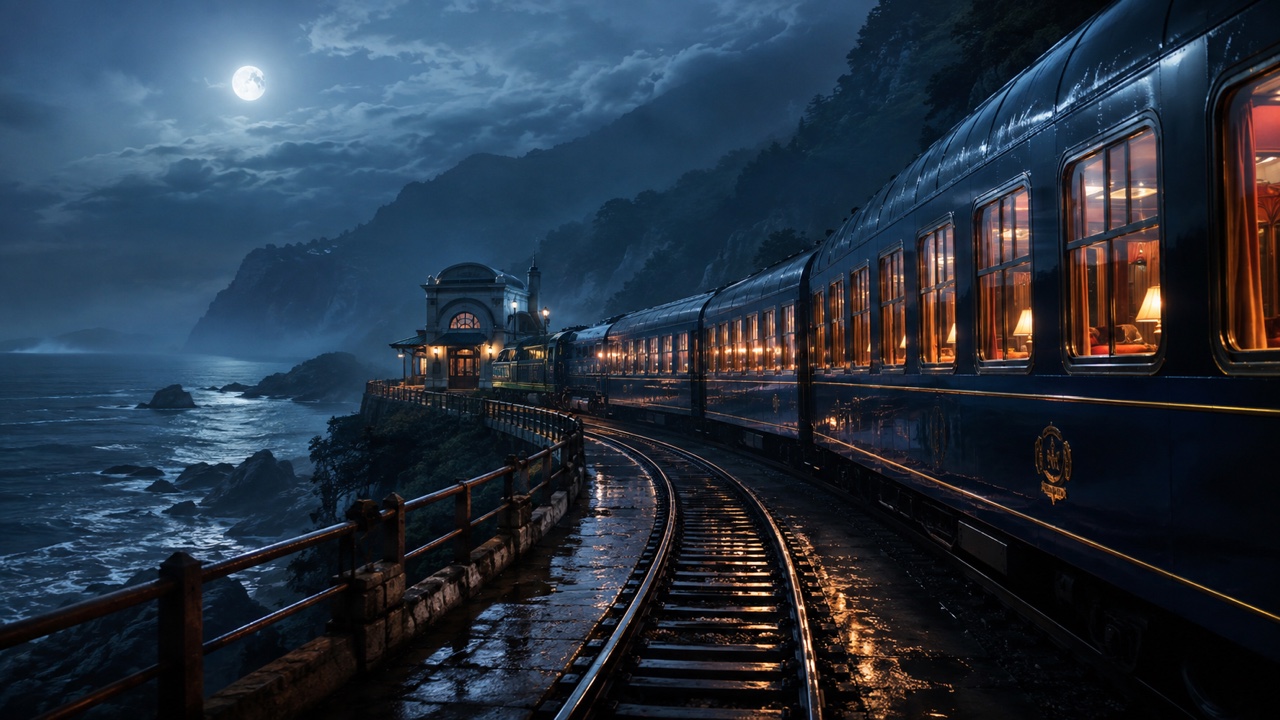
Build Detailed Scenes from Natural-Language Prompts
Turn a written brief into a scene with a clear subject, environment, material language, camera position, and mood. GPT Image 2 can interpret detailed relationships, which helps when a visual needs more than an attractive style. Use the generator for editorial concepts, cinematic frames, product environments, illustrations, or original campaign directions. Effective GPT Image 2 prompts state the purpose first, then describe essential details and exclusions. When several ideas compete, ask the model for a single coherent direction rather than an overloaded collage. This approach makes it easier to judge whether the image communicates the intended story before you invest in finishing work.
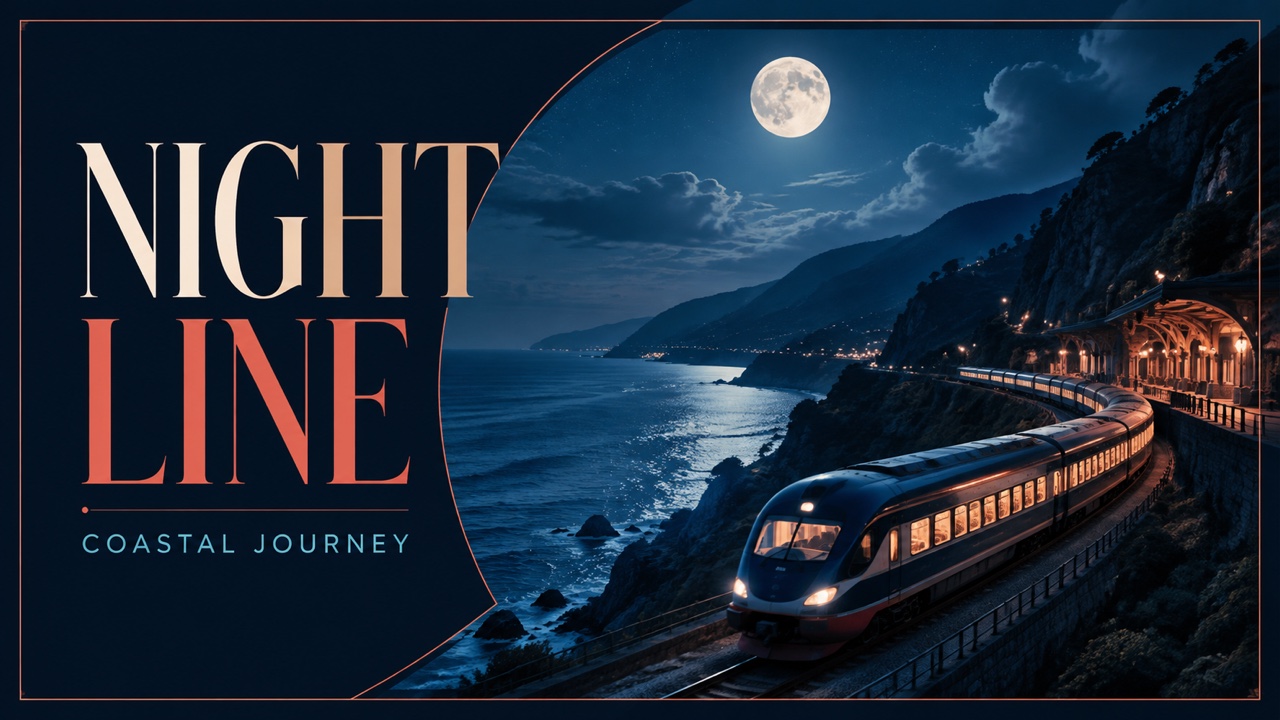
Place Readable Copy Inside the Composition
Create posters, title cards, social graphics, menu concepts, labels, and interface mockups where typography belongs to the visual idea. The model can follow instructions to add text, but every important word still deserves review. Put required wording in quotation marks, specify its location and relative prominence, and ask the generator to avoid extra copy. The best GPT Image 2 prompts separate the exact text from style notes, so spelling and hierarchy remain visible requirements. Use it to establish the direction quickly, then confirm names, prices, dates, legal lines, and other critical details before publication.
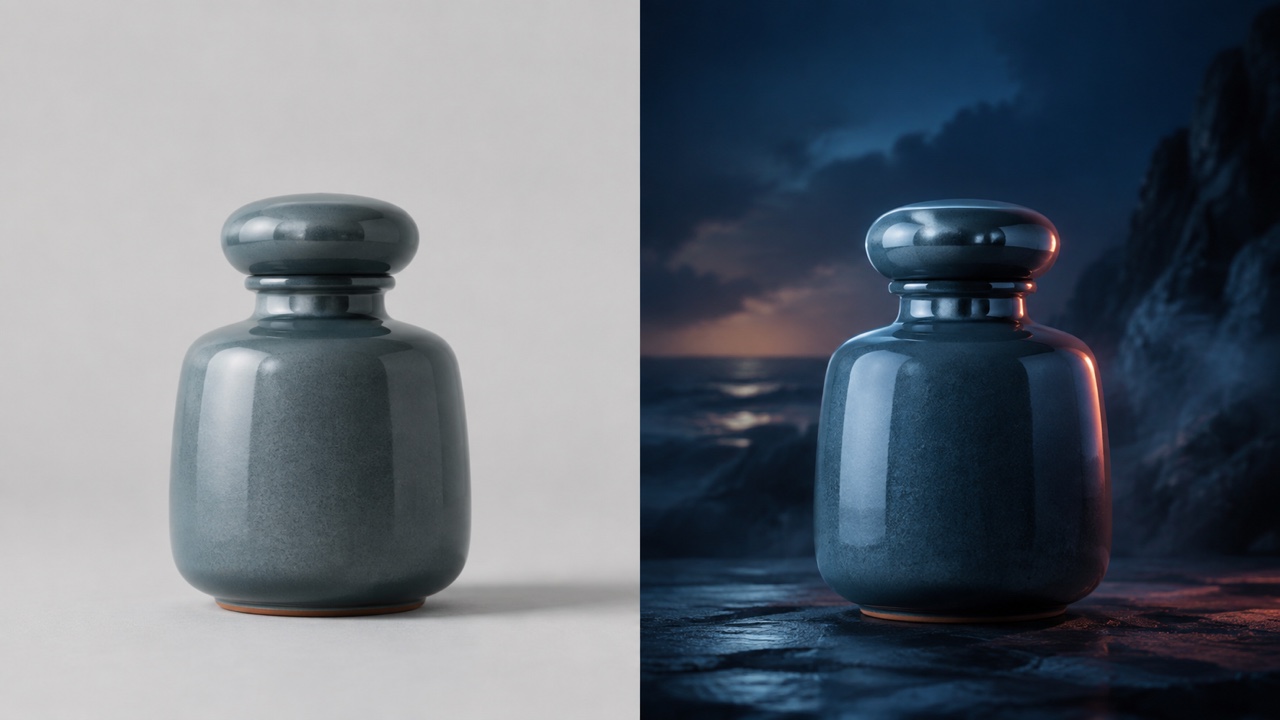
Guide New Results with Visual References
Begin with an authorized photo, sketch, product shot, or style reference when the prompt alone cannot define the visual anchor. The model accepts high-fidelity image inputs and can generate or edit images from that context. Tell the generator whether to preserve identity, composition, lighting, shape, or palette, and identify the exact change you want. Focused reference editing is useful for replacing a background, exploring a treatment, restaging a product concept, or extending a visual system. Review every result because generative edits can affect nearby details, even when your instruction names a specific area.
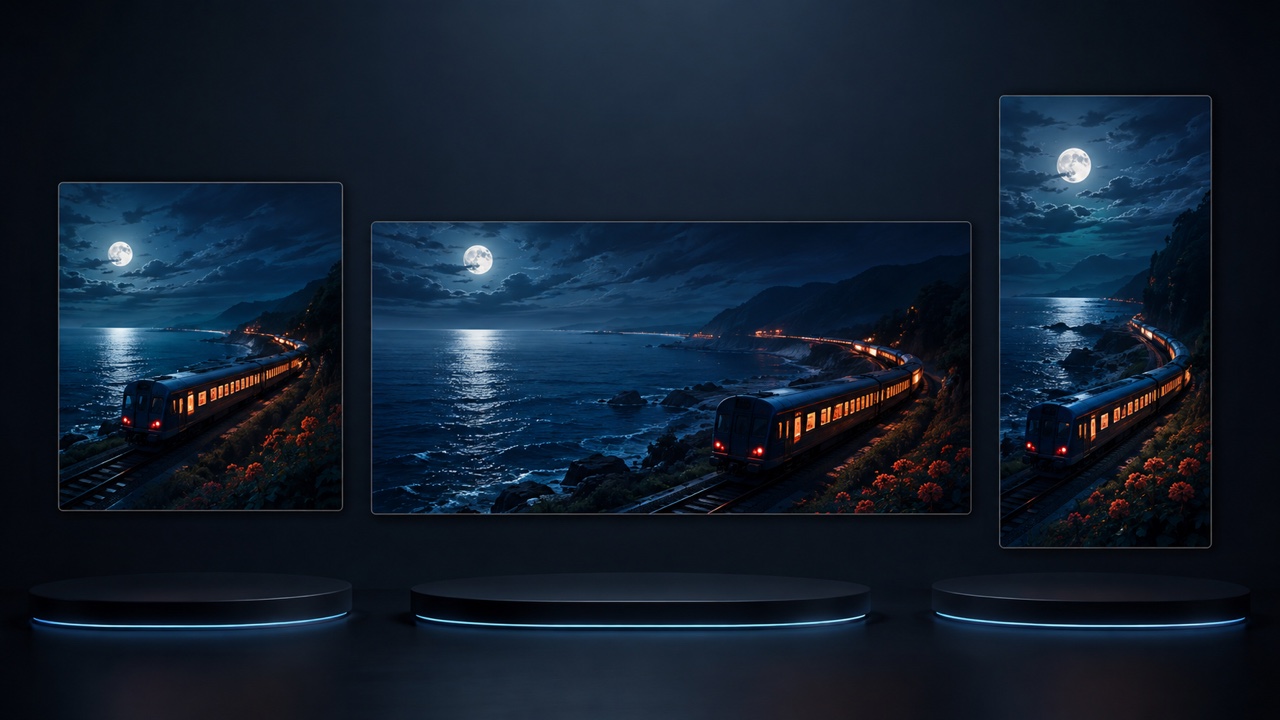
Explore Formats Without Rebuilding the Idea
Adapt a concept for different placements by describing the required framing, visual hierarchy, and safe space. The model supports flexible image sizes, giving the same core idea room to become a square post, wide banner, portrait cover, or presentation visual. The GPT Image 2 generator should receive the purpose of each format, not only a ratio. Ask the model to protect the subject and message while reorganizing the composition for the new canvas. Generate images with GPT Image 2 as separate, purpose-built variations, then compare cropping, balance, and readability instead of assuming one master image will fit every channel.
What You Can Create with GPT Image 2
Use the GPT Image 2 generator for concept development, communication, and visual exploration across many creative tasks. The model can shorten the distance between a written idea and a concrete draft, while human review keeps the result accurate, original, appropriate, and ready for its real context. Teams can compare alternatives earlier, document why one direction works, and carry clearer decisions into writing, design, photography, illustration, or production planning.

Campaigns, Social Posts, and Thumbnails
Marketing and content teams can use the model to explore campaign worlds, social graphics, announcement images, thumbnails, and ad concepts before committing to a final production route. The GPT Image 2 generator can combine subject direction, composition, atmosphere, and short in-image copy in one brief. Build GPT Image 2 prompts around the audience and message instead of a collection of trendy effects. If the visual depicts a real product, offer, person, or event, confirm every detail and disclosure before publishing. GPT Image 2 accelerates ideation; it does not replace brand review, factual checks, consent, or platform-specific advertising requirements.

Posters, Covers, Menus, and Layout Concepts
Designers can use the model for early poster systems, book or album cover directions, menu concepts, signage, title cards, and layout studies. The GPT Image 2 generator helps make the interaction between image and typography visible before detailed production. State exact wording, hierarchy, alignment, negative space, palette, and print or screen context in your GPT Image 2 prompts. Generate images with GPT Image 2 to compare several art directions, then rebuild or refine the selected concept in the appropriate design software. Always proofread generated copy and verify trademarks, dates, pricing, accessibility, and reproduction quality.

Product, Editorial, and Presentation Visuals
Create product-scene concepts, editorial illustrations, keynote visuals, article headers, pitch images, or mood boards with the model. The GPT Image 2 generator can translate a practical brief into a visual that teams can discuss early. Describe material behavior, camera framing, lighting, environment, and the communication goal, then tell GPT Image 2 which facts must remain unchanged. Reference-guided GPT Image 2 image editing can help explore an approved asset in a new setting, but the result may invent packaging, labels, reflections, dimensions, or small features. Treat every output as a generated concept until the owner verifies product accuracy and usage rights.

Stories, Characters, Learning, and Previsualization
Writers, educators, filmmakers, and game teams can use GPT Image 2 to visualize original characters, settings, story beats, historical-style scenes, lesson concepts, and preproduction frames. The GPT Image 2 generator makes abstract descriptions easier to discuss with collaborators. Strong GPT Image 2 prompts define the audience, narrative purpose, required actions, and continuity rules across each image. Ask GPT Image 2 to preserve key character traits when developing a sequence, but inspect every frame for drift. Educational or historical visuals require independent fact checking, and original projects should avoid copying protected characters, living artists, or recognizable brands too closely.
A Faster Way to Make Visual Ideas Discussable
These fictional examples illustrate how different people might use GPT Image 2 online. Each workflow begins with the GPT Image 2 generator, but selection, verification, and final creative responsibility remain with the person or team using the result. They are scenarios, not customer claims. Real outcomes vary with the brief, references, settings, iteration, and the judgment applied after generation, so the strongest process always includes an intentional review stage.
I used GPT Image 2 to turn a loose campaign thought into three directions my team could actually compare. The GPT Image 2 generator handled the setting and headline relationship in the first pass, while focused GPT Image 2 prompts helped me refine one variable at a time. We still rebuilt the chosen layout, but the discussion started much faster.
I used GPT Image 2 to turn a loose campaign thought into three directions my team could actually compare. The GPT Image 2 generator handled the setting and headline relationship in the first pass, while focused GPT Image 2 prompts helped me refine one variable at a time. We still rebuilt the chosen layout, but the discussion started much faster.
For a product presentation, GPT Image 2 helped me test environments before a studio brief was approved. I gave the GPT Image 2 generator a material reference and strict instructions about what could not change. GPT Image 2 image editing produced useful possibilities, and our team carefully checked proportions, labels, and reflections before choosing the final direction.
For a product presentation, GPT Image 2 helped me test environments before a studio brief was approved. I gave the GPT Image 2 generator a material reference and strict instructions about what could not change. GPT Image 2 image editing produced useful possibilities, and our team carefully checked proportions, labels, and reflections before choosing the final direction.
I wanted an original world for a short story, not a generic fantasy picture. GPT Image 2 responded well when I described the social setting, architecture, weather, and emotional beat together. The GPT Image 2 generator gave me a concrete reference for revision, and better GPT Image 2 prompts kept later scenes closer to the same visual logic.
I wanted an original world for a short story, not a generic fantasy picture. GPT Image 2 responded well when I described the social setting, architecture, weather, and emotional beat together. The GPT Image 2 generator gave me a concrete reference for revision, and better GPT Image 2 prompts kept later scenes closer to the same visual logic.
GPT Image 2 gave our workshop participants a quick way to see how composition changes meaning. The GPT Image 2 generator made several framing choices visible from one brief, then we discussed what worked and what failed. Generate images with GPT Image 2 was the practical exercise, but critical viewing and source awareness were the real learning goals.
GPT Image 2 gave our workshop participants a quick way to see how composition changes meaning. The GPT Image 2 generator made several framing choices visible from one brief, then we discussed what worked and what failed. Generate images with GPT Image 2 was the practical exercise, but critical viewing and source awareness were the real learning goals.




GPT Image 2 FAQ
Learn what GPT Image 2 does, how the GPT Image 2 generator uses prompts and references, and what to review before you rely on a generated or edited visual.
GPT Image 2 is OpenAI's current image generation model for fast, high-quality generation and editing. It accepts text and image input and produces images. This GPT Image 2 online page provides a focused interface for turning a prompt or authorized reference into a new visual.
Yes. GPT Image 2 supports both image generation and image editing. Start the GPT Image 2 generator with text for a new composition, or add an image and describe the change. For GPT Image 2 image editing, state what must remain unchanged and review nearby details after generation.
Lead with the outcome, then add subject, environment, composition, style, lighting, text, and constraints. Good GPT Image 2 prompts distinguish requirements from optional flavor. Tell the GPT Image 2 generator the intended use, quote exact copy, and revise one important choice at a time.
Yes. GPT Image 2 supports high-fidelity image inputs for generation and editing. Upload only images you are allowed to use, explain the reference's role, and identify what can change. The GPT Image 2 generator still needs careful review when identity, products, brands, or factual content matter.
Yes. GPT Image 2 can follow instructions to add text within an image. Put exact wording in quotation marks and describe placement, prominence, and style. Proofread the GPT Image 2 generator output closely, especially for names, prices, dates, small labels, multilingual copy, or regulated information.
That depends on the current terms governing this site, the model, your inputs, and your intended use. GPT Image 2 does not provide legal clearance. Before publishing GPT Image 2 generator output, verify source rights, consent, trademarks, factual claims, required disclosures, and local rules.
Check spelling, anatomy, object count, perspective, lighting, continuity, product details, identities, and factual claims. GPT Image 2 can produce compelling work, but generation remains probabilistic. Revisit the GPT Image 2 generator for focused corrections, and use human editing or expert review when accuracy has real consequences.
Create Your Next Visual with GPT Image 2
Open the GPT Image 2 generator, describe the result you want, add an authorized reference when useful, and generate a visual you can inspect and refine. Use GPT Image 2 prompts to make composition, text, mood, and constraints explicit. Whether you begin from words or explore GPT Image 2 image editing, keep each revision focused and verify the final image before you share it. Save the prompt and the reason for each change so collaborators can understand the creative path, compare alternatives fairly, and reproduce a promising direction without guessing which instruction made the difference.