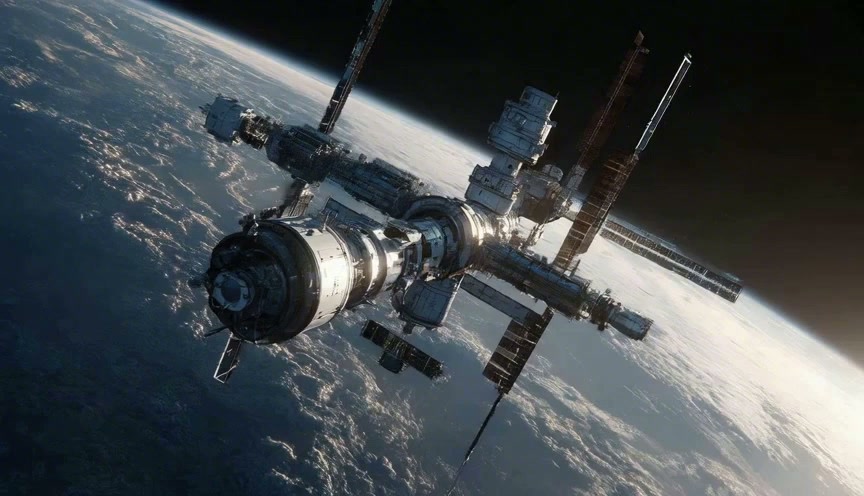
Build a stronger visual direction from a short brief or reference image, then refine the details that matter.
Shape Ideas Into Visuals With GPT Image 2.6
An AI Image Model For Clearer Creative Directions
Give a visual brief a concrete shape with GPT Image 2.6. Work from a written scene, use a reference for something recognizable, or develop a loose sketch into a more finished direction. This AI image model supports creative exploration across product photography, illustrated stories, campaign studies, and personal projects. GPT Image 2.6 gives you something to compare, discuss, and revise before a larger production decision. Start with the intended audience and the image’s job. For reference image editing, name the details that should survive the change, then inspect the result beside the original. A promising GPT Image 2.6 draft should communicate your idea clearly as well as look appealing.
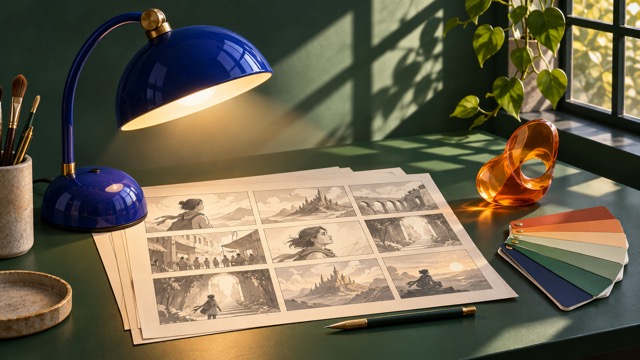
A Practical GPT Image 2.6 Workflow
Work through a visual question in four stages with GPT Image 2.6. Define the outcome, choose the starting material, describe the relationships, and inspect the result. This AI image model becomes easier to direct when you can explain why each detail belongs. Use reference image editing for a source that already contains the shape or arrangement you need; begin from text when the scene is new.

Frame The Intended Outcome
Begin with where the image will be used and what the viewer should notice first. GPT Image 2.6 can interpret a product scene, a campaign concept, a presentation illustration, or an original visual metaphor. This AI image model has more useful choices to make when the task has a clear destination. For product scene concepts, explain the role of the item and the amount of space around it. For poster layout ideas, describe the reading order and the area that must stay open for a headline. A GPT Image 2.6 request should make the main design decision clear.

Choose A Reference With A Job
Upload a reference when it supplies something the written brief cannot describe reliably. GPT Image 2.6 can use that starting point while you explain what should remain. In a reference image workflow, separate identity, structure, color, and background so the requested change is clear. Reference image editing is easier to judge when you ask for one meaningful adjustment at a time. For reference image editing, tell GPT Image 2.6 what to preserve before describing a new setting.

Describe The Important Relationships
GPT Image 2.6 should know which object is in front, where light comes from, and what carries the visual emphasis. For product scene concepts, describe the surface, camera view, and contact shadow. If you are trying to turn a sketch into an image, preserve the main arrangement before adding texture or atmosphere. Reference image editing can develop surfaces without asking for a new layout.

Review And Make One Focused Change
GPT Image 2.6 is easier to refine when the next request has a single purpose: adjust the light, simplify the background, or bring one object forward. In a reference image workflow, compare the new version with the source and record what was preserved. An AI image model can produce an attractive image that still misses the brief, so use the original objective as your test. Reference image editing should move the work toward that goal, rather than add unrelated detail.
What GPT Image 2.6 Can Add To A Creative Brief
Test three different visual decisions with GPT Image 2.6: how a product sits in its surroundings, how a sketch gains depth, and how a character enters a scene. Use this AI image model for the initial direction and reference image editing for a controlled next pass. Each example is a creative possibility, not a measured performance result.
GPT Image 2.6 For Product Scenes
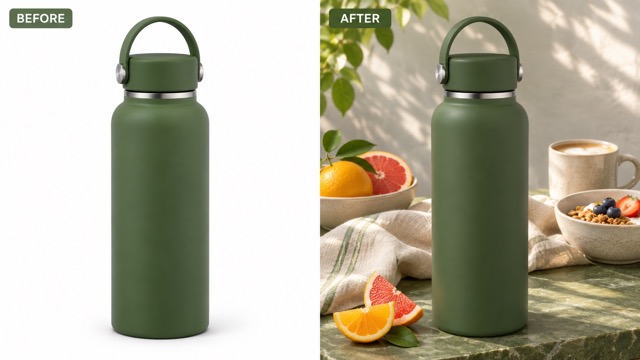
Product scene concepts start with the relationship between an item and its surroundings. Give GPT Image 2.6 a clear product reference, then describe a setting that makes sense for its use. A reusable bottle on a breakfast table tells a different story from the same bottle against a plain catalog background. This AI image model can explore that change through surface, light, camera view, and negative space. In GPT Image 2.6, specify which packaging details, colors, and proportions should remain recognizable. Use reference image editing when the setting is close but a prop competes with the item. Product scene concepts can guide an early campaign discussion, while the actual product remains your accuracy reference. A focused GPT Image 2.6 revision might soften the light or simplify the table instead of replacing the entire composition.
GPT Image 2.6 From Sketch To Scene
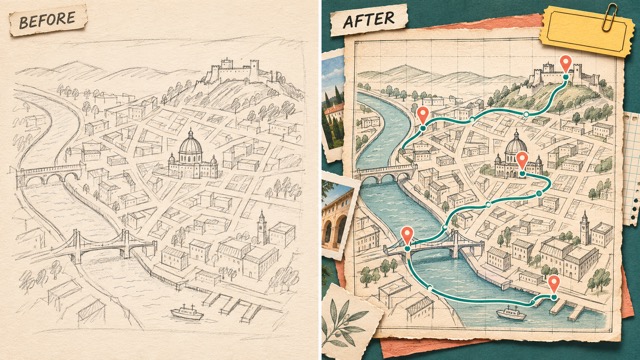
To turn a sketch into an image, explain what the drawing already gets right. GPT Image 2.6 can use a loose map, outline, or layout as a visual starting point while you describe material, depth, and atmosphere. This AI image model can explore paper texture, a more deliberate palette, or a finished illustration treatment around that structure. Reference image editing is helpful when one area needs work but the wider arrangement is sound. When you turn a sketch into an image, compare both versions before adding another layer. GPT Image 2.6 should make the concept easier to understand, with each revision answering a specific visual question.
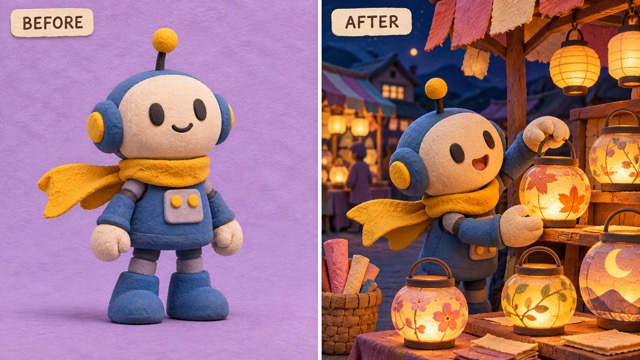
GPT Image 2.6 For Original Characters
An original mascot needs recognizable design cues before it needs a more elaborate background. Give GPT Image 2.6 a reference that shows the silhouette, outfit, and main colors, then ask for one readable action in a new setting. A small robot arranging lanterns creates a story through its task and surroundings. This AI image model can explore the illustration treatment while you decide which details define the character. In GPT Image 2.6, name those details explicitly instead of relying on a general request for consistency. Reference image editing can adjust a prop or background after the scene has a useful direction. Compare the face, accessories, body proportions, and lighting with the source.
Use GPT Image 2.6 For Different Visual Goals
Choose a purpose for GPT Image 2.6 before you choose a visual treatment. An AI image model can support an early campaign study, an editorial explanation, or a fictional scene, but each brief needs a different test for success. Reference image editing is useful when that test depends on recognizable source details.

Brand And Product Exploration
Use GPT Image 2.6 to test product scene concepts before a shoot, launch, or listing refresh. Reference image editing is useful when a source photo already carries the correct shape. An AI image model can offer directions for discussion, but a polished concept still needs an accuracy review before it becomes a customer-facing image. With GPT Image 2.6, separate an imaginative background from the product facts a customer must be able to trust. Treat this AI image model as a planning aid and compare every label with the real item.

Campaign And Poster Planning
Build poster layout ideas around an event, launch, or social message. Give GPT Image 2.6 a clear subject and an intentional reading order. The AI image model can help a team choose a direction while a later layout pass handles final typography and production details. Use reference image editing to simplify a busy draft. Review GPT Image 2.6 output as a layout proposal before settling final typography.

Editorial And Presentation Work
Turn ideas into images for articles, decks, and teaching materials. GPT Image 2.6 can explore a visual metaphor, a diagram-like scene, or an original editorial illustration. Tell the AI image model what the viewer should learn from the picture, then remove details that could confuse that message. Reference image editing can develop a useful sketch without losing its main relationship.

Original Characters And Scenes
Use a reference image workflow to give an original mascot or character a new setting. GPT Image 2.6 can preserve the design cues you name while exploring a new prop, pose, or atmosphere. Ask the AI image model for one readable action and check the result against the source. If you want to turn a sketch into an image, keep the silhouette and major color blocks visible as the scene develops. Reference image editing helps define the next adjustment. Keep a source sheet beside GPT Image 2.6 versions as the character develops.
Creative Notes On GPT Image 2.6
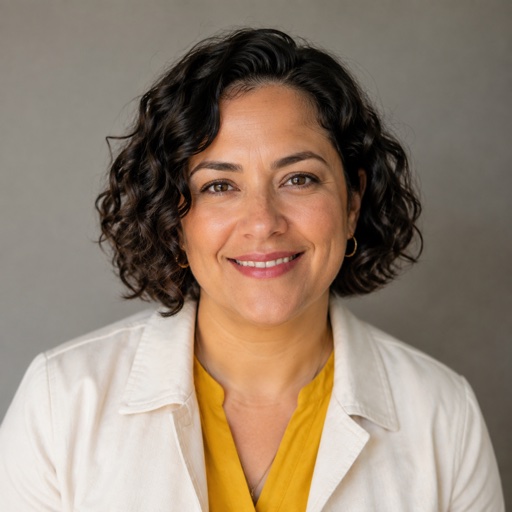
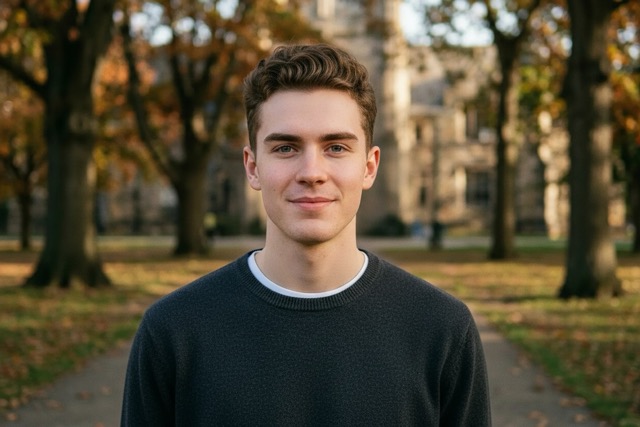
The names and reactions below are fictional examples of creative priorities, not verified customer endorsements or measured performance reports.
GPT Image 2.6 appeals to me for exploring a product setting with the original object close at hand.
GPT Image 2.6 appeals to me for exploring a product setting with the original object close at hand.
I value a draft that makes the reading order visible, so the team can discuss the message first.
I value a draft that makes the reading order visible, so the team can discuss the message first.
The reference image workflow gives a drawing room to develop while its original silhouette guides the discussion.
The reference image workflow gives a drawing room to develop while its original silhouette guides the discussion.
GPT Image 2.6 makes focused revision appealing: identify the change that matters and keep the useful parts.
GPT Image 2.6 makes focused revision appealing: identify the change that matters and keep the useful parts.


GPT Image 2.6 FAQ
Use these answers to prepare a GPT Image 2.6 brief and review the outcome. Separate the possibilities of an AI image model from the choices that make a particular project useful. Reference image editing also benefits from a clear list of details to keep.
GPT Image 2.6 is OpenAI’s image generation and editing model family. It creates visuals from text and supports work guided by image inputs. Use this AI image model for scene concepts, illustrations, and revisions of an existing visual. GPT Image 2.6 includes Flare for faster iteration and Sunburst for detailed work; choose the option that suits the brief. Reference image editing starts with a useful source and a description of what should change.
Tell GPT Image 2.6 what the picture must communicate, then describe the subject, setting, framing, and light. Avoid stacking several incompatible styles into one request. An AI image model has clearer choices when you specify a main subject and visual hierarchy. For reference image editing, list what should stay as well as the requested change. Review your GPT Image 2.6 result before expanding the brief, and revise the part that misses your goal.
Give GPT Image 2.6 a reference when a product shape, character design, drawing, or layout anchors the idea. In a reference image workflow, explain what the source contributes. This AI image model should receive a clear distinction between the details to retain and the new treatment. Reference image editing can then focus on a background, material, or prop. Compare GPT Image 2.6 output against the source before using it as the starting point for another revision.
GPT Image 2.6 can help you compare poster layout ideas through a focal subject, palette, negative space, and headline position. Give the exact words when text matters. An AI image model may still change letters or small labels, so check spelling and dates yourself. Reference image editing can develop an existing composition study. Treat GPT Image 2.6 output as a design candidate that informs your final layout, with supporting copy added carefully in a layout tool.
To turn a sketch into an image, upload the drawing and tell GPT Image 2.6 which arrangement, silhouette, or proportions matter. Add the materials and lighting you want the AI image model to explore. Reference image editing should clarify the drawing’s idea without hiding it under extra detail. Compare your GPT Image 2.6 version with the original before moving on, particularly when the sketch explains a route, process, or factual relationship.
Review GPT Image 2.6 output at full size and at the size it will actually appear. Check faces, hands, lettering, product geometry, edges, and object relationships. An AI image model can make a convincing scene that still misses the brief. For reference image editing, compare the details you asked to retain. Keep the strongest GPT Image 2.6 version and request a focused correction instead of changing several unrelated things at once.
Bring Your Next Idea To GPT Image 2.6
Choose a clear subject and a useful destination, then let GPT Image 2.6 make the first direction visible. Start from text or use reference image editing to develop something you already have. Compare the result, decide what deserves to stay, and create the next version with a focused brief.