Nano Banana AI Image Use Cases: What to Make and How to Prompt It
Nano Banana AI can turn a rough visual idea or an existing picture into a usable draft through conversational edits. This guide shows where it is most useful, how to write prompts for five common jobs, how to choose among Google's image models, and what to check before publishing the result.
Need a new campaign image, a different background for a product photo, or a quick mockup of a room? Nano Banana AI is most useful when you can describe the result and refine it in conversation. You can start with words, upload an image, or combine references, then request a targeted change. The trick is to specify what should change and what must stay fixed.
“Nano Banana” now names a family of Gemini image models, rather than just the original Gemini 2.5 Flash Image release. Google lists Nano Banana 2 Lite for quick, simple work, Nano Banana 2 as its versatile general option, and Nano Banana Pro for complex professional assets. The original model remains available through the API, but Google recommends newer options for new workflows. The examples below work as starting points across the family; exact controls and quality vary by model and product.
Where Nano Banana AI Fits Best
The five images below are illustrative examples created for this article; they are not outputs from a Nano Banana test.
1. Make a Precise Edit to an Existing Image
Upload a photo when the subject, framing, or lighting is already close. Google highlights localized edits as a core use case: you can ask for a color change or remove a small visual distraction while preserving the rest. This is useful for social images, listing photos, and quick creative revisions.
Prompt: “In the uploaded product photo, change only the ceramic mug from blue to forest green. Keep its shape, logo-free surface, camera angle, shadows, table, and background unchanged.”
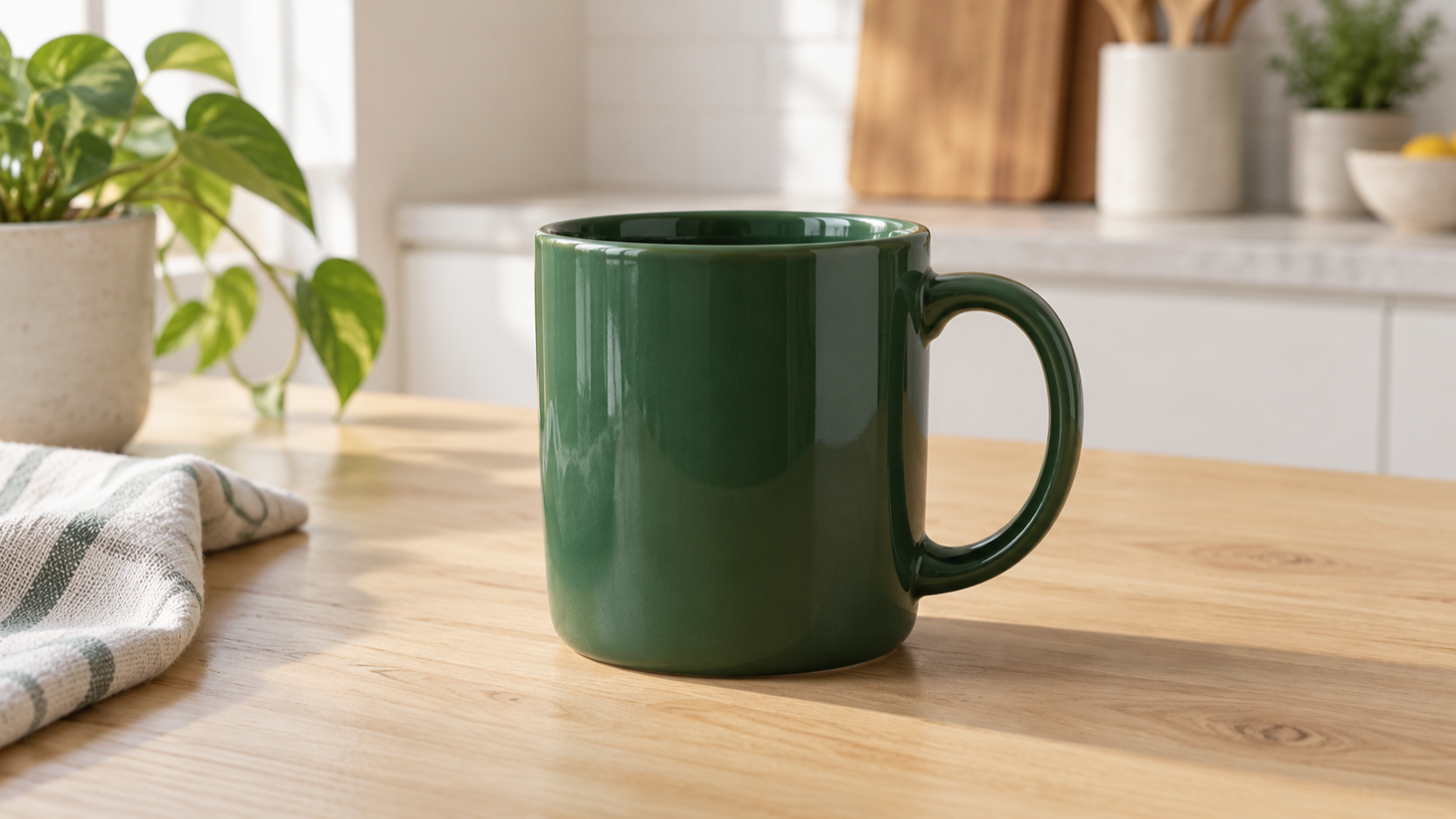
A forest-green mug shown as an illustrative result of a precise color edit.
Check the output at full size. A request for a small change may still alter edges, reflections, or nearby objects. If it does, name the drift in the next turn: “Restore the original handle and tabletop; keep only the new mug color.”
2. Keep a Character or Product Consistent Across Variations
For a storyboard, catalog, or recurring social series, upload a clear reference and assign it a role. Google's prompting guidance recommends stating which input supplies the subject, pose, style, or background. That gives the model fewer choices to make on your behalf.
Prompt: “Use Image A as the reference for the same illustrated fox character. Create a second scene in a bookstore, eye-level medium shot. Preserve its face shape, orange-and-cream markings, and green scarf. Change only the pose and setting.”

A recurring character concept set in a bookstore.
Make one approved “anchor” image first, then reuse it. Compare each new image with the anchor before adding another scene; small identity changes can accumulate over multiple edits.
3. Preview Products, Outfits, or Rooms
Nano Banana can help people explore an idea before committing to a physical change. Google's examples include combining visual references and restyling photos. A furniture seller might place a chair into a room photo; a designer might test a package color; a homeowner might compare paint and upholstery combinations.
Prompt: “Use Image A for the empty living room and Image B for the armchair. Place the armchair beside the window at a believable scale. Match the room's daylight and perspective. Do not change the walls, floor, or window.”

An armchair placement concept for a room preview.
Treat the output as a concept preview. Inspect scale, geometry, and material details before using it as a product representation or a design specification.
4. Draft Visuals That Include Text
Menus, event posters, simple infographics, and ad concepts need legible words as well as attractive composition. Google says its newer Nano Banana 2 model improves text rendering and localization. For text-heavy or highly controlled production assets, Google positions Pro as the more precise choice.
Prompt: “Create a 16:9 wide poster for a neighborhood book fair. Use a warm paper-cut illustration style. Include exactly this headline: ‘BOOK FAIR’. Include exactly this date line: ‘SATURDAY, MAY 9’. Leave a clean blank area at the bottom for a venue address. No other text.”

A wide book fair poster concept with sample in-image text.
Generate the wording first, then ask for the image with that exact wording. Google's image generation documentation recommends this sequence for in-image text. Proofread every letter and number before publication; use a layout editor if exact typography is essential.
5. Produce Many Crops and Creative Directions
One concept can become a square feed image, a vertical story, and a wide banner. Ask for each format explicitly, and keep a short visual brief so the subject, palette, and message remain recognizable. For teams building image workflows, Nano Banana 2's API model page describes it as a speed-oriented choice for interactive and high-volume work.
Prompt: “Using the approved coffee campaign image as reference, make a 16:9 website hero crop. Keep the same cup, warm morning palette, and window light. Place the cup on the right and leave uncluttered space on the left for separately added copy.”

A 16:9 coffee campaign crop with space for separately added copy.
Request new crops from the approved source rather than repeatedly cropping the last generated variant. Review each size where it will actually appear: a good desktop hero can fail on mobile.
How to Start in Gemini or the API
For individual use, Google's Gemini Apps instructions say to open the Images area at gemini.google.com, choose a template or enter a prompt, and upload an image when you want to edit one. Model choice depends on the Gemini mode and plan: 2 Lite favors speed, 2 balances quality and speed, and Pro offers more detailed control for eligible paid users.
For an application, use the Gemini API with an explicit model ID. The official image generation guide lists the current IDs and supported inputs, resolution controls, aspect ratios, and reference-image limits. Start with one representative prompt and a small review set. Evaluate identity preservation, text accuracy, unwanted changes, turnaround time, and cost on your images. Google does not publish a single benchmark that predicts performance for every creative task, so a local sample is more useful than a blanket quality score.
Nano Banana AI Pricing and Practical Limits
In the Gemini app, availability and usage limits depend on the account and plan. For API work, prices differ by model, output size, standard versus batch processing, and any grounding requests. As of October 12, 2026, Google's Gemini API pricing page lists Nano Banana 2 (gemini-3.1-flash-image) image output at approximately $0.067 per 1K image on standard paid pricing, or $0.034 per 1K image in batch; input tokens and other applicable charges are separate. Check the live page before budgeting, because model rates and terms can change.
The official limitations also matter: the requested number of outputs is not always followed exactly, reference-image capacity varies by model, and every generated image includes Google's SynthID watermark. Inspect sensitive details such as faces, product labels, dates, measurements, and depicted facts. Search grounding can inform an image, but it does not replace checking the underlying facts.
Is Nano Banana AI Right for Your Project?
Use Nano Banana AI when fast iteration, reference-based editing, and conversational control are valuable. Begin with a clear source image or visual brief, state the change, lock the elements that matter, and revise against a specific defect. Choose 2 Lite for simple drafts, 2 for a broad mix of jobs, and Pro when complex composition, text, or brand consistency justifies extra care. The strongest workflow combines AI speed with human review of the final asset.