GPT Image 2.6 Adds SVG, GIFs, and New Editing Controls
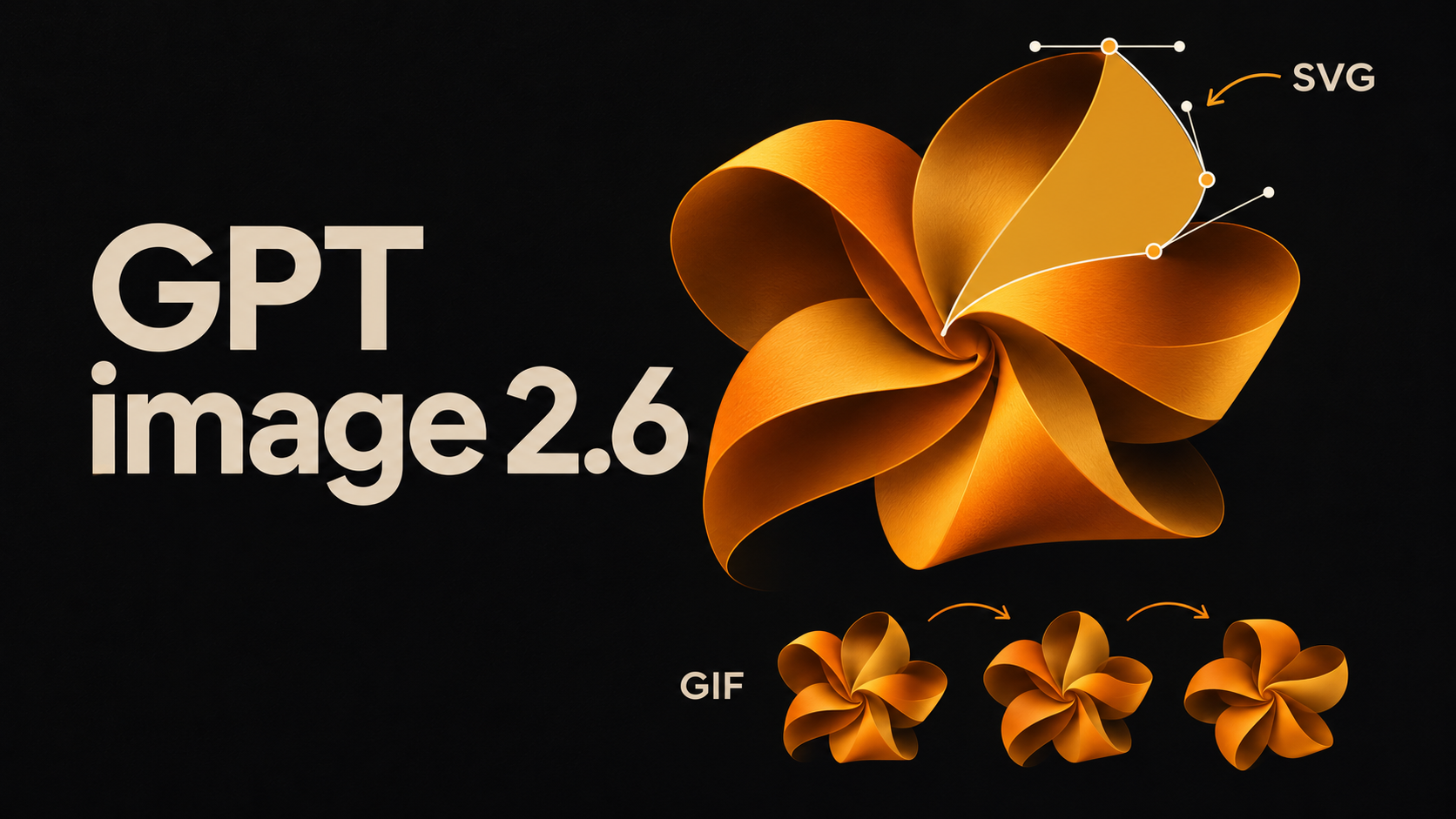
GPT image 2.6 adds planning controls, markup-guided editing, SVG output, and animated GIFs. Learn how Sunburst and Flare fit different production tasks, what the API costs, and which limitations to check before relying on generated assets in a design or development workflow.
A polished AI image can still leave a designer with work to do. The client wants one object changed, the developer needs an editable icon, or the campaign needs a short loop rather than another still. The usefulness of an image model depends partly on what happens after that first attractive result.
OpenAI released GPT Image 2.6 Sunburst and Flare on November 4, 2026, adding adjustable planning complexity, SVG generation, animated GIF generation, and markup-guided editing to the new model family. These additions give teams more ways to direct revisions and produce assets in the format a project needs.
What's available in ChatGPT and the API
The API identifiers are gpt-image-2.6-sunburst and gpt-image-2.6-flare. Developers can select either model for image generation and editing.
In ChatGPT, the update is called ChatGPT Images 2.6. OpenAI reports faster generation and better preservation of details across edits, though its release notes do not quantify the speedup. GIF creation is rolling out there. Saved reference images also let users reuse a photo in later chats without uploading it again.
For an API product, plan how users will upload and select their reference images. ChatGPT's saved-reference feature should not be treated as a storage feature of the image API.
Control planning separately from image quality
OpenAI describes Sunburst as suited to detailed visual work and Flare as suited to fast iteration. Both accept text and image inputs. For an interactive editor, Flare is a sensible model to test first. For a demanding composition, compare Sunburst against the same brief. OpenAI's descriptions provide a starting point; the choice should come from testing your own prompts.
The separate complexity control changes how much planning happens before rendering. Both models support low, medium, and high, defaulting to high when the field is omitted. Rendering quality remains a different setting.
For a simple background replacement, start by comparing low and medium complexity. For a poster containing several objects and dense text, include high complexity in the test. OpenAI warns that additional planning can increase latency and introduce unwanted changes. Turning every control to its maximum can therefore work against a narrowly defined edit.
Hold the prompt, input image, output dimensions, and quality constant when comparing complexity levels. Check whether the requested change happened and whether anything important changed with it. A faster result that requires another round of correction may save little time overall.
Point to the edit you want
Markup lets users show the model where an edit should happen. The input is a separate transparent PNG overlay matching the first image's dimensions after orientation. Send the original and the overlay together.
For example, a user could circle a backpack on a bench and ask for a different fabric color while preserving the straps and background. The annotation identifies the target; the text explains the intended result and what should stay intact. This can be easier to express than a long description of the backpack's position.
OpenAI's image generation guide documents this through POST /v1/images/edits for supported GPT Image 2.5 and 2.6 models. Markup is shared with the previous generation. It cannot be combined with a mask or prompt_rewriter.
In an editing interface, keep the original and annotations on separate layers, and show the result for review. Check the surrounding image for unintended changes, even when the target is clearly marked.
SVG and GIF change what you can deliver
SVG output is useful when a developer or designer needs editable paths, shapes, and colors. The API first creates a reference image, then uses a separate model to produce a static SVG file. Before adding a generated icon to a design library, inspect its paths and check how easily you can adjust its shape or colors.
SVG output uses POST /v1/images/generations, requires n=1, and does not support streaming. It is unavailable through the edit endpoint, so a workflow built around editing PNGs needs a separate generation step for vector delivery.
For animated GIFs, set output_format to gif and describe the subject, motion, and desired loop. GIF output also uses the generation endpoint and is unavailable through image edits. The generation API reference currently requires access to the selected model's GIF preview, so check access before building the feature into a product.
A looping mascot could work on an onboarding screen, provided its file size and motion suit the interface. Check the transition from the final frame back to the first, and whether the character stays recognizable throughout. The two model pages still list audio and video as unsupported; GIF output is a distinct image-generation feature.
Measure cost per usable asset
The two variants share these standard, uncached token rates in OpenAI's API pricing:
| Token category | Standard rate per million tokens, both models |
|---|---|
| Text input | $5.00 |
| Image input | $8.00 |
| Image output | $30.00 |
These rates do not translate into a fixed price per image. Equal rates also do not guarantee identical bills: token consumption depends on the request. SVG has an additional cost component, too. OpenAI charges for the reference image at the image model's rates and for SVG authoring tokens at the authoring model's rates. The image output rate alone is not the total SVG price.
For budgeting, collect actual usage for the dimensions, quality, references, and output type your application needs. Include retries and rejected drafts when calculating the cost of an approved asset.
Evaluate the output against production requirements as well. Check that a product label stays legible after recoloring, or that a generated vector can be adjusted without rebuilding it. A request that succeeds technically can still produce an asset your team cannot use.
For teams already using image generation, GPT Image 2.6 offers concrete features to evaluate: directed edits, vector assets, and short animations. Start with one recurring task and define what a usable result must preserve. Compare the time, cost, and cleanup required to reach that result. That will tell you whether the new options improve your workflow.